How to Lock Google Play Store with a Password or PIN
Prevent unauthorized app downloads, accidental in-app purchases, and unwanted data extraction by securing the gateway to your Android device.
To lock the Google Play Store, you have three primary options depending on your goal. If you want to prevent unauthorized purchases, enable authentication in the Play Store's native settings. If you need to restrict child access, use Google Family Link. To completely block the app from opening, install a dedicated third-party software locker that requires a PIN or fingerprint before the Play Store interface even loads.
Method 1: Native Settings
Require authentication for purchases directly within the Google Play app.
Method 2: Family Link
Set up parental controls to approve or block downloads on a child's device.
Method 3: Dedicated App Lock
Lock the Play Store icon completely using third-party encryption software.
Why How to Lock Google Play Store Matters More Than Ever in 2025
The Google Play Store is the front door to your Android device. Leaving it unlocked means anyone holding your phone can install data-harvesting apps, view your download history, or rack up significant charges through in-app purchases. A simple Play store password lock transforms this open door into a secure vault.
Understanding the distinction between data privacy and data security is vital here. Privacy dictates who is allowed to view your data; security enforces those rules. While adjusting permissions manages privacy, knowing exactly how to password lock play store provides the physical security barrier that stops data brokers and bad actors from deploying apps on your device in the first place.
How to Lock the Google Play Store
Method 1: Require Password for Play Store Downloads natively
If your primary goal is to stop accidental spending or unauthorized transactions, Google's built-in purchase authentication is your first step. This method does not prevent someone from opening the store or downloading free apps, but it secures your wallet.
- Open the Google Play Store app on your Android device.
- Tap your profile icon in the top right corner of the screen.
- Navigate to Settings > Authentication.
- Tap Require authentication for purchases.
- Select the option: For all purchases through Google Play on this device.
Limitations: This setting only triggers when money is involved. Free apps—which are the primary vehicles for data collection by third-party brokers—can still be downloaded freely without a password.
Method 2: Prevent Kids from Downloading Apps — Family Link
If you are researching how to lock google play store for kids, native parental controls managed via Google Family Link are the official ecosystem solution. This allows a parent device to restrict what a child device can access.
- Download the Google Family Link app on the parent device.
- Follow the prompts to link your child's Google account.
- Open Family Link, select your child's profile, and tap Manage settings.
- Select Google Play.
- Under "Purchases & download approvals," set the requirement to All content.
Limitations: This requires setting up a dedicated Google Child account. It is not suitable for locking the Play Store on your own personal, primary device.

Method 3: Lock Play Store in Android via Third-Party App Lock
To completely restrict access to the Play Store app itself—preventing both free downloads and unauthorized browsing—you must use a dedicated app locker. This requires authentication before the Play Store interface even loads.
Using a tool that provides military-grade encryption ensures that the lock cannot be bypassed simply by force-stopping the security app in Android settings. We cover our recommended tool for this in the section below.
Method 4: Lock Play Store on Samsung (Secure Folder)
If you own a modern Samsung Galaxy device, you have access to Knox-secured hardware encryption via the Secure Folder.
- Go to Settings > Biometrics and security > Secure Folder.
- Sign in with your Samsung account and set a secure PIN or pattern.
- Move the Play Store app into the Secure Folder, or hide sensitive apps within it.
Play Store Lock Method Selector
Not sure which method is right for you? Answer one question to find the best approach.
What is your primary goal for locking the Play Store?
The Tool We Recommend for Most Users
Of all the options we covered, native settings leave free downloads exposed, and Family Link is strictly for child accounts. To truly lock the Google Play Store on a primary device, we recommend Folder Lock.
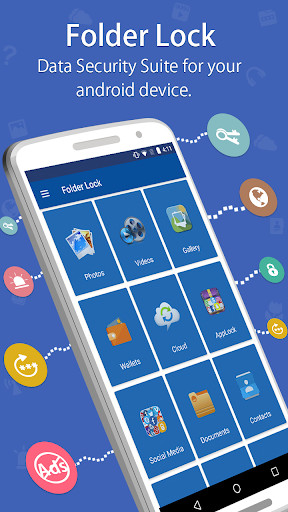
Developed by NewSoftwares.net, Folder Lock provides a dedicated App Locker feature for Android. It allows you to place a strict PIN, password, or fingerprint lock directly on the Play Store application[cite: 1]. If an unauthorized user attempts to bypass the lock, the app's Hack Attempt Monitoring captures their details[cite: 1].
How a Dedicated App Locker Secures Your Device
When you rely on third-party security software rather than native OS toggles, you gain access to features specifically engineered to prevent tampering.
Unlike native authentication which only triggers at the point of purchase, an App Locker intercepts the launch command of the Google Play Store. The application will not load its interface until the correct master PIN or biometric signature is provided[cite: 1].
If someone finds your phone and repeatedly attempts to guess your Play Store lock, Folder Lock's monitoring system logs the unauthorized entry attempts, providing a record of the intrusion[cite: 1].
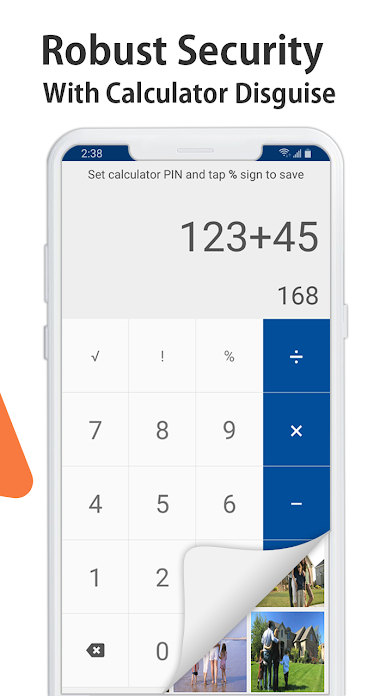
Security apps are often targeted for uninstallation by intruders. Folder Lock can disguise itself as a functioning calculator app on your home screen, concealing the fact that a dedicated security protocol is managing your device's app permissions[cite: 1].
Play Store Lock Methods Comparison
| Method | Difficulty | Security Level | Best For | Limitations |
|---|---|---|---|---|
| Native Play Settings | Easy | Low | Stopping accidental charges | Does not block free app downloads. |
| Google Family Link | Moderate | Moderate | Parental supervision | Requires a child account; complex setup. |
| Samsung Secure Folder | Moderate | High | Galaxy device owners | Limited strictly to Samsung hardware. |
| Folder Lock (App Locker) | Easy | Maximum | Complete app blocking | Requires running a background service. |

Troubleshooting & Recovery Guidance
If you own the device but have lost access, follow these legitimate recovery steps.
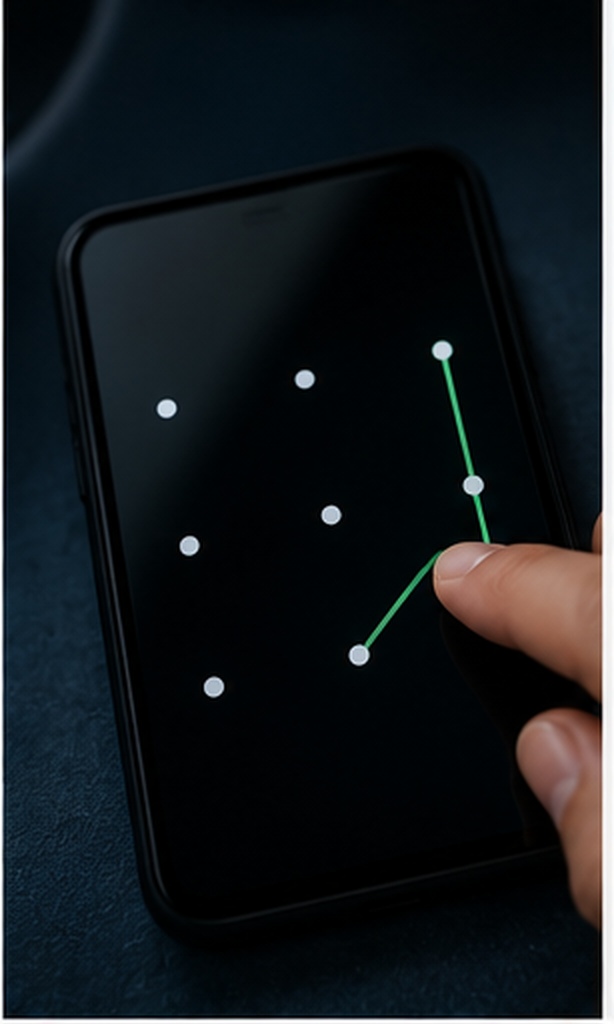
Forgot your Play Store password lock?
If you are using Google's native purchase authentication and forgot the password, you are actually forgetting your main Google Account password. You must go to myaccount.google.com from a recognized device, select "Security," and follow the standard Google account password recovery flow.
How to recover access to a locked folder you own
If you used a third-party app locker like Folder Lock and forgot the master PIN, do not attempt to force-uninstall the application. Doing so without decryption can result in permanent data loss for any encrypted files[cite: 1]. Instead, utilize the "Forgot Password" prompt on the lock screen. This will trigger a secure token email to your registered recovery address, allowing you to reset your credentials legitimately.
Google play store ka lock kaise hataye (How to remove the lock)?
To safely remove an app lock, launch the security application, authenticate with your master PIN or fingerprint, navigate to the "App Lock" section, and toggle the switch next to the Google Play Store from 'Locked' to 'Unlocked'.
Frequently Asked Questions
-
How to lock the Google Play Store with a password?
You can natively require a password for purchases via the Play Store settings under "Authentication." To lock the app completely from opening, you must install a third-party app locker like Folder Lock.
-
How to require a password for Play Store downloads?
For paid apps, enable "Require authentication for purchases" in the Play Store settings. For free apps, native settings will not prompt for a password; you must use Google Family Link or an independent app locking tool.
-
How to lock the Play Store on Android?
Download an App Locker utility, grant it usage access permissions in your Android settings, select the Google Play Store from the list of installed apps, and assign a master PIN or fingerprint.
-
What is the difference between data privacy and data security?
Data privacy refers to the policies and user choices regarding who has the right to access your information (e.g., app permissions). Data security refers to the physical and technical mechanisms—like encryption and password locks—that enforce those privacy policies against unauthorized breaches.
-
How do companies collect personal data without my knowledge?
Data brokers often embed tracking code within seemingly harmless free apps available on storefronts. If your Play Store is unlocked, an unauthorized user or child can install these apps, inadvertently granting them background permissions to harvest location, contacts, and browsing habits.
Folder Lock: Free vs Full Version
If you choose to use our recommended third-party locker, here is a transparent look at what is included in the free trial versus the full version.
Free Version
- Basic app locking functionality
- Standard file encryption limits
- Local storage only
Full Version
- Unlimited locker size[cite: 2]
- Advanced Stealth Mode
- Cross-platform sync across devices[cite: 1]
- Cloud backup integration[cite: 1]
Our Verdict
Securing your digital ecosystem starts at the source. While native Android settings are sufficient for stopping accidental in-app purchases, they fail to prevent the installation of free, data-mining applications. For true peace of mind, implementing a dedicated app locker like Folder Lock ensures that nobody can alter your device's software without your explicit, authenticated permission.
